
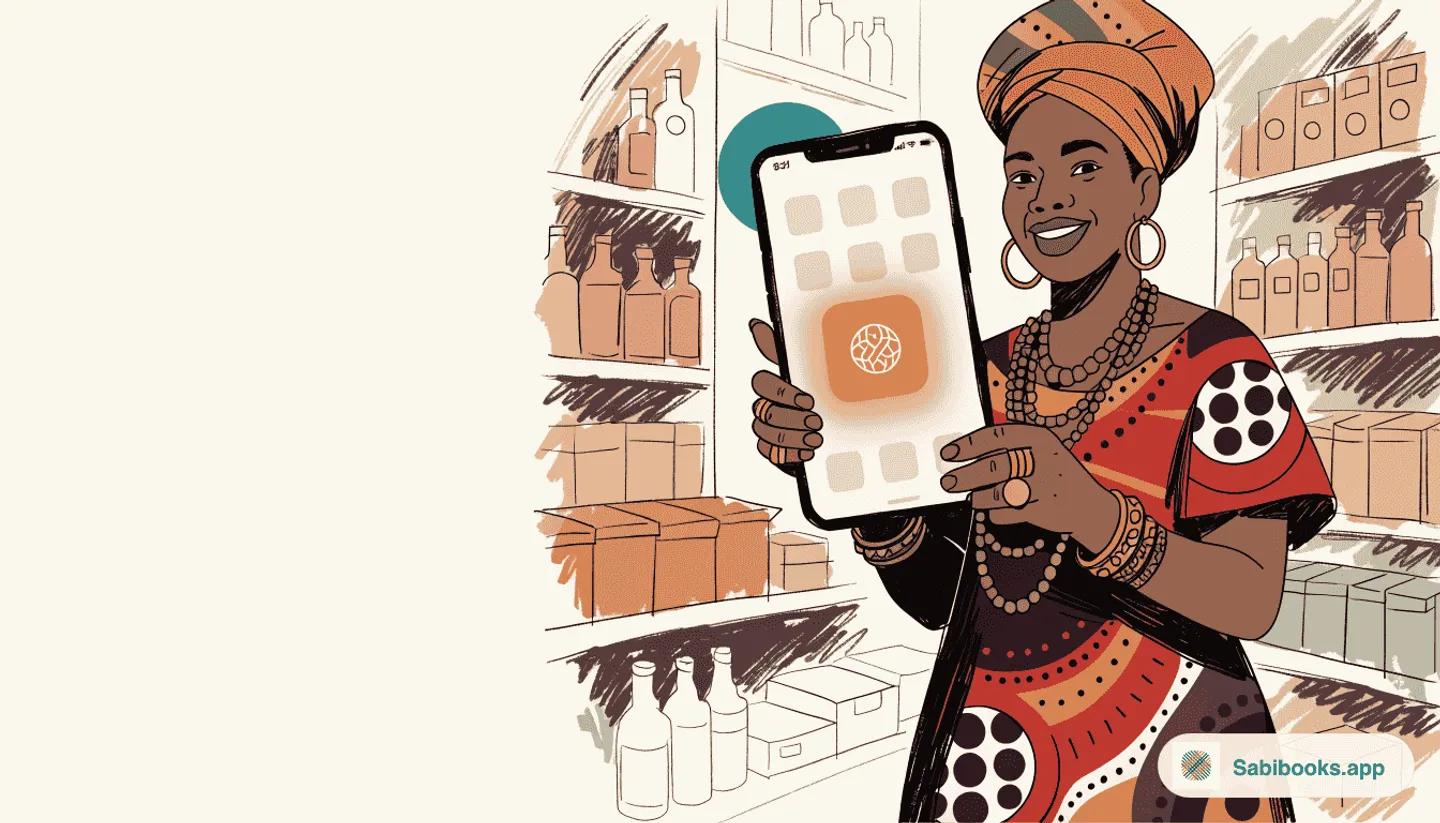
The Shop Owner Who Gave Up Too Soon
Chidinma runs a small buka near a polytechnic. The lunch rush between 12pm and 2pm is brutal. At a food vendors’ association meeting, another buka owner mentions SabiBooks. “It tracks your sales, your stock, even who owes you. And it works on your phone.”
That evening, Chidinma opens her Play Store and types “SabiBooks”. Nothing comes up. She tries “Sabi Books” with a space. Still nothing. She closes Play Store and decides the woman gave her the wrong name.
Two months later, the same buka is doing nearly twice the lunch-hour sales Chidinma is doing. Chidinma is still scribbling totals in a notebook between orders.
This is what happens to many small business owners in Nigeria. They hear about SabiBooks, they search the Play Store, they do not find it, and they give up. They do not know that SabiBooks is already on their phone. There is no app to wait for. The browser does the work, and the orange icon ends up on their home screen the same way any other app would.
This guide walks you through that install in 30 seconds, on Android or iPhone. It also covers the 60-second setup that lets you skip the email OTP every time you open the app. Tap the icon, tap a PIN, you are inside.
You Do Not Need the Play Store. SabiBooks Is Already on Your Phone.
When you open app.sabibooks.app from your phone’s browser, you are already inside the full SabiBooks app. The same products, the same sales, the same customer credit page. It is not a stripped-down version. It is the app.
Modern phones treat websites like this as Progressive Web Apps, or PWAs. The plain-English version: a normal website that, once you install it from your browser, behaves like an app you would download from the Play Store. Home-screen icon. Full-screen view. Works offline. No browser address bar at the top.
Why no Play Store listing yet? Google requires every Nigerian developer to submit a government-issued ID and a proof-of-address document, like a NEPA bill, before listing a business app. We are working through that paperwork. Meanwhile, the PWA is the real SabiBooks. When the Play Store version eventually goes live, your login and your data will work in either one. Nothing you do today will be wasted.
How to Install on Android (Chrome)
Most Nigerian phones run Chrome. Here is the path.
- Open Chrome and go to app.sabibooks.app.
- Tap the three-dot menu (top-right corner).
- Tap Install app. If you do not see that option, look for Add to Home screen instead. Chrome shows one or the other, depending on the page.
- Confirm the name “SabiBooks” and tap Install (or Add).
- The orange SabiBooks icon appears on your home screen, beside your other apps.
Tap the icon. The app opens full-screen, no Chrome address bar in sight. To anyone who looks at your phone, it is just another app.
Other Android Browsers
You do not have to use Chrome. Samsung Internet, Microsoft Edge, and Opera all install PWAs the same way.
- Samsung Internet (the default on many Samsung and Tecno phones): tap the menu (three lines, bottom-right), then Add page to, then Home screen.
- Microsoft Edge: tap the three-dot menu, then Add to phone.
- Opera: tap the menu, then Add to, then Home screen.
If the orange icon ends up on your home screen and opens full-screen when you tap it, you are good. Two browsers to avoid:
| Browser | Issue |
|---|---|
| UC Browser | Older versions do not support PWA installation. Switch to Chrome. |
| Opera Mini | The data-saver mode strips features. Use full Opera instead. |
How to Install on iPhone (Safari)
iPhone is a little different. Only Safari can install PWAs. If you are on Chrome or Firefox on iPhone, switch to Safari for this step.
- Open Safari and go to app.sabibooks.app.
- Tap the Share button at the bottom of the screen (the box with the up-arrow).
- Scroll down the share sheet and tap Add to Home Screen.
- The name “SabiBooks” is already filled in. Tap Add in the top-right.
The orange icon appears on your home screen. Tap it. The app opens full-screen with no Safari controls.
On iOS 26 and newer, the share dialog now shows an Open as Web App toggle that is on by default. Leave it on. That is what gives you the native-app feel.
What You See the First Time You Open SabiBooks
The first screen shows the SabiBooks logo with the tagline “Simple-Simple, No Wahala” underneath, and two buttons:
- Get Started, for first-time users.
- I already have an account, for everyone else.
Tap Get Started. The next screen, Create Account, asks for four things: your email, your phone number, your name, and your business name. Fill them in and submit.
SabiBooks emails you a 6-digit code. Open your email app, copy the code, paste it back into the Verify screen. You are signed in.
After verification, a screen called Set Up Your Business asks for optional details: business type, address, city, state. You can fill these now or skip and come back later.
You then land on your dashboard. Across the bottom of the screen are five tabs:
- Home, your dashboard with sales, profit, and stock at a glance.
- Products, your inventory.
- Sale, the big orange button in the middle. Tap this to record a sale.
- Customers, your customer list and credit balances.
- More, the place to find invoices, expenses, reports, settings, and help.
A checklist also appears at the top of the dashboard: Get started with SabiBooks. It has five steps: complete your business profile, add your first product, add your first customer, record your first sale, and explore your dashboard. Each step links straight to the right screen.
Skip the OTP Wait Forever (60-Second Setup)
If you only read one section of this guide, read this one. Most merchants do not know it exists.
By default, every time you log in, SabiBooks emails you a 6-digit code. You open Gmail, find the code, type it in. About 30 seconds per login. If you open the app six times a day, that is 3 minutes of OTP wait, every day.
Here is the math. Chidinma serves about ₦80,000 of food each day. Her busiest stretch is between 12pm and 1:30pm, when students and office workers stream in for their afternoon meal. If she pulls out her phone to record a sale and spends 30 seconds waiting for an OTP, the next customer is already at the buka across the road. Over a month, those small delays cost her real money.
You can turn the OTP off, once and forever, with three options that work together. The whole setup takes 60 seconds, and your daily login becomes one tap.
One thing to do first. Make sure you actually installed SabiBooks to your home screen, using the steps higher up in this guide. On iPhone in particular, Safari clears website storage after 7 days of not opening the site — so if you only bookmarked the link without adding it to your home screen, your trust + PIN setup can quietly reset. Installed apps are exempt from that 7-day clear-out.
Option 1: Fingerprint or Face ID (Best, If Your Phone Supports It)
This is what modern banking apps use, and it is the most secure and the fastest. If your phone unlocks with your fingerprint or face, SabiBooks can use the same thing.
After your first login, you may see a prompt: Enable fingerprint login? Tap Enable, confirm with your fingerprint or face, and from then on, opening the app prompts your phone’s biometric. One touch, you are in.
This works on most Android phones with a fingerprint sensor and on iPhones with Face ID or Touch ID.
Option 2: Trust This Device + PIN Login (Fallback for Every Phone)
If your phone does not have biometric, or you would rather type a PIN, this is the path. It also works as a backup for the fingerprint method when the sensor cannot read your finger (wet hands, food residue from the buka — the usual).
After your first login, SabiBooks shows you a prompt headed “Trust this device?” Tap the Trust this device button. SabiBooks remembers your phone for 90 days.
The next prompt is “Set a PIN for faster login”. Tap Set PIN, then choose a 4–6 digit PIN. Pick something you will remember, but a stranger would not guess (do not use 1234 or your phone number). Type it twice to confirm.
That is it. The next time you open SabiBooks, you see a PIN keypad with “Welcome back, [Your Name]!” Tap your PIN. You are in. No email. No code. No waiting.
What if I still see the email code after trusting and setting a PIN? It happens, and it is almost always one of these:
- You tapped Not now or Skip for now on one of the two prompts. Both are optional, and you can re-enable them any time from More → Settings → Login & Security.
- You cleared your browser data, or your iPhone Safari cleared it for you after 7 days. Install SabiBooks to your home screen so this does not happen again (see the install steps above), then trust + set PIN once more.
- You are on a different phone (or a different browser on the same phone). Trust is per-device. Trust + set PIN on the new phone, and you are set there too.
- It has been more than 90 days since you last trusted this device. Trust again from Settings → Login & Security.
Option 3: Sign In With Google
On the Login screen, you will see a Sign in with Google button. If your Google account is already on your phone, one tap signs you in. No email code, no password to type.
On first Google sign-in we still offer you the one-time Set a PIN prompt (so you have an offline-login fallback). You can skip it if you do not need it.
Comparison: How Long Each Login Takes
| Method | Daily speed | Best for | Survives 7 days unused on iPhone |
|---|---|---|---|
| Fingerprint or Face ID | 1 second | Daily use, if your phone has it | Yes, if you installed the app to your home screen |
| PIN login | 2 seconds | Daily use, recommended for everyone | Yes, if you installed the app to your home screen |
| Google sign-in | 2 seconds | If you already use Google on this phone | Yes, Google does not depend on Safari storage |
| Email OTP | 20–30 seconds | First-time login, or backup when nothing else works | Always works, but always the slowest |
Set up all three if you can. Fingerprint for everyday speed. PIN as backup, for when your phone reboots. Email OTP only when nothing else works.
Forgot Your PIN?
Tap Forgot PIN? on the PIN screen. SabiBooks sends an email OTP, you enter the code, and you set a new PIN. You do not lose any data.
Where to Manage All This
Open the More tab, then Settings. Find the Login & Security card. There you can change your PIN, manage trusted devices, register or remove fingerprint login, and see which devices have access to your account.
What Works Offline, What Does Not
SabiBooks is built for Nigerian network reality. When NEPA takes light and your data is slow, the app keeps going.
When your phone loses network, a yellow banner appears at the top of the screen: “You’re offline. Changes will sync when connected.” That is the app letting you know it sees what is happening. You can keep selling.
Here is what works offline and what needs the network.
| Activity | Works offline? | Notes |
|---|---|---|
| Viewing your products, customers, and recent sales | Yes | Whatever was loaded earlier stays available |
| Recording a new sale | Yes | Saves on your phone, syncs when network returns |
| Adding a product or customer | Yes | Syncs when you reconnect |
| Sending an invoice on WhatsApp | No | WhatsApp itself needs the network |
| Sending a payment reminder | No | Needs data to deliver |
| Logging in for the first time on a new phone | No | First login needs the internet |
| Opening the app on a trusted device with PIN | Yes | After PIN setup, you can open offline |
For a deeper read on offline-first business apps and how SabiBooks compares to the alternatives, see our bookkeeping apps comparison.
Android Shortcuts and App Updates
Two small things that make the installed app feel native.
Quick shortcuts. On Android, press and hold the SabiBooks icon for one second. A small menu appears with three direct actions:
- New Sale opens the sales screen immediately, skipping the dashboard.
- Add Product jumps straight to the new-product form.
- Customer Credit opens the credit overview, useful for chasing debt.
This is the same feature Play Store apps use. Long-press, jump, done.
Updates without the Play Store. When the SabiBooks team ships a new feature, the next time you open the app, you may see a small toast at the bottom: “New version available! Click update to get the latest features.” Tap Update now. The app reloads with the new version. No queue, no Play Store delay.
iPhone does not support long-press shortcuts for PWAs yet, but updates work the same way.
Common Mistakes to Fix
| Problem | What is happening | What to do |
|---|---|---|
| The icon shows the Chrome logo instead of the orange SabiBooks one | You added a bookmark, not the PWA | Remove the icon, reinstall using the Install app option |
| You see two SabiBooks icons on your home screen | You installed once and then added as a bookmark too | Remove the bookmark, keep the one that opens full-screen |
| The 3-dot menu does not show Install app | The page may have just loaded, or your browser is outdated | Refresh the page, or update your browser from the Play Store |
| The app keeps asking for OTP every time | You skipped the trust prompt, your browser cleared its storage, or you are on a different device | See the “What if I still see the email code” troubleshooting in the PIN login section above, and re-enable Trust + PIN from More → Settings → Login & Security |
| You switched to a new phone and have to log in again | Trusted devices are tied to each phone | Install on the new phone, log in with email OTP once, set up PIN again |
| The OTP email does not arrive | Check your spam folder, especially in Gmail | Add [email protected] to your contacts so future codes land in the inbox |
How SabiBooks Helps
The install plus PIN setup pays off in three ways merchants tell us about.
Faster every customer interaction. When a customer is at the counter, you do not want them watching you wait for an email. PIN login means recording a sale is a two-tap operation: PIN, then Sale.
Offline keeps you selling. When your network drops in the middle of a transaction, the yellow banner appears, the sale still records, and SabiBooks syncs when you come back online. You never have to tell a customer “wait, my data is not catching”.
No Play Store update queue. When we ship a fix or a new feature, you get it the next time you open the app. Updates roll out instantly to every merchant on every plan, including the free tier.
If you have not sent your first invoice yet, that is the next step. Our first-invoice guide walks through it in under a minute.
Frequently Asked Questions
Is this the real SabiBooks app?
Yes. The PWA at app.sabibooks.app is the full app. The Play Store version, when it launches, will use the same backend, the same login, and the same data.
Will it work like the Play Store version when that one launches? Yes. Your login and your data are tied to your business account, not to a specific app. The Play Store version will log you straight in. You can use either one.
Will it slow down my phone? No. The PWA uses a small fraction of the storage a Play Store app would. It does not run in the background unless you open it.
Will it use a lot of data? No. The app caches your data after the first login. Opening the app on a normal day uses less data than loading one WhatsApp status video.
Is my login secure? Yes. PIN, fingerprint, and trusted-device data are stored on your phone and protected. The 90-day trust is per-device, so adding a new phone always requires email OTP first. You can revoke a trusted device any time from Settings → Login & Security.
What happens if I uninstall and reinstall? Your account and data are safe on our servers. After reinstalling, log in once with email OTP, set up PIN again, and you are back to where you were. Nothing is lost.
Does it work offline? Yes, for recording sales, viewing customers and products, and adding new entries. Sending invoices and WhatsApp reminders needs the network.
Where do I get help if something breaks? Tap the ? icon in the top-right of the app. That opens the Help Center with guides, FAQs, and a button to message us on WhatsApp at 0815 645 2984, Monday to Saturday, 8am–8pm WAT.
Key Takeaways
- You do not need the Play Store. SabiBooks is already on your phone. Open
app.sabibooks.appin your browser and install from there. - Android Chrome: 3-dot menu, then Install app. iPhone Safari: Share, then Add to Home Screen. Both take under 30 seconds.
- Skip OTP forever in 60 seconds. Trust this device, set a 4–6 digit PIN, enable fingerprint if your phone has it. Your daily login becomes one tap.
- Offline works for the things that matter. Recording sales, viewing customers, adding products. WhatsApp invoices need data.
- Updates are automatic. No Play Store queue. Tap Update now when the toast appears.
Two months from now, do not be the shop owner still searching the Play Store. Open your browser, follow the first thirty seconds of this guide, and put SabiBooks on your phone today.


