
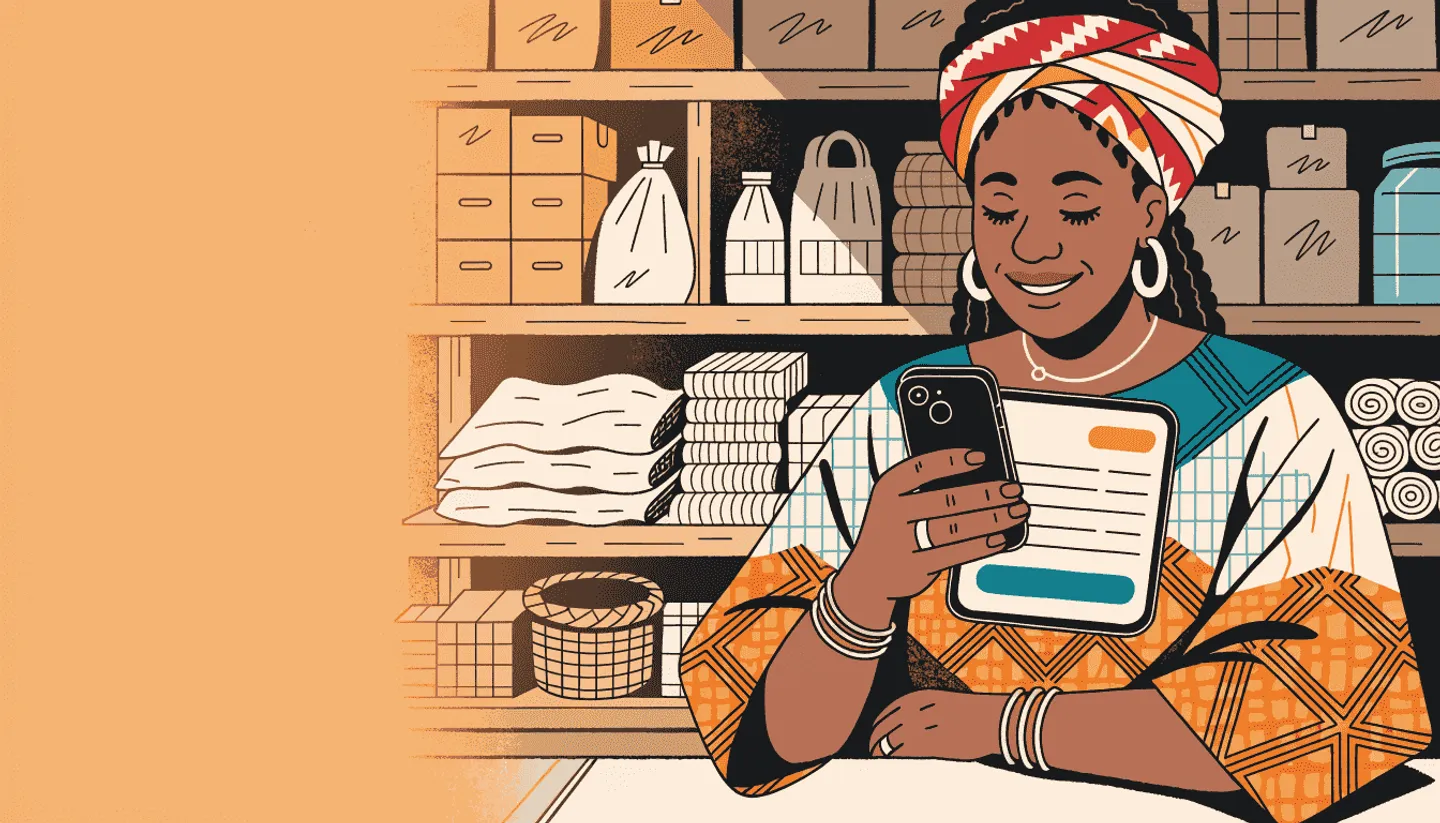
The Customer Who Asks For An Invoice
A school administrator calls Mama Chidi. They want ₦45,000 worth of provisions for the staff room, but the bursar will not pay cash. “Send me an invoice with your shop name on it. Once it gets to accounts, we transfer.”
Mama Chidi has been running her provision store for eight years. She has never sent an invoice in her life. She panics, says “let me get back to you,” and starts asking around if anyone can help her type one in Word.
The school finds another shop. Mama Chidi loses ₦45,000.
This happens every week to small Nigerian businesses. The customers who ask for invoices, schools, contractors, NGOs, government agencies, cooperative societies, are often the ones who spend the most. They do not carry cash. They run everything by bank transfer with a paper trail. If you cannot send them what they need, they go somewhere else.
With SabiBooks, sending a proper invoice takes less than a minute. You can share it on WhatsApp, the customer pays you by bank transfer, and your stock and reports update automatically.
Invoice, Receipt, Credit: Three Different Things
Before we get into the steps, you need to understand which one your customer is asking for. Many shop owners mix these up.
| What it is | When to use it | Customer pays | |
|---|---|---|---|
| Receipt | Proof that money already changed hands | Customer pays in your shop | Already paid |
| Invoice | Formal request for payment, with bank details and due date | Customer wants paper trail before paying | After they receive the invoice |
| Credit | Informal “give me, I pay Friday” arrangement | Trusted regular customer takes goods first | When they decide to clear |
A customer who asks for an invoice is asking for the middle option. They are not refusing to pay. They want a document their accountant can file before the transfer happens. Once you understand that, the fear goes away.
If you want the full guide on the informal credit option, read our piece on tracking customer credit and collecting debts.
Step 1: Open Invoices
In SabiBooks, tap More in the bottom navigation, then tap Invoices. You land on the Invoices list. The first time, the list will be empty.
Tap New Invoice in the top right.
Step 2: Pick The Customer
Tap the Customer picker and search by name or phone. If the customer is new, add them first. Their name and phone number is enough to start. A WhatsApp number is even better, because that is how you will share the invoice when it is ready.
Step 3: Set The Type
You will see three options:
- Invoice, the regular one. Use this 95% of the time.
- Proforma, a formal quote. Useful when the customer is asking “how much will this cost?” before they commit. They can review it, and you can promote it to a real invoice later, when they say yes.
- Tax Invoice, which only shows up if your business is VAT-registered. Most Nigerian MSMEs are not VAT-registered and do not need this. If you are not sure, pick Invoice and move on.
Step 4: Add The Items
For each thing the customer is buying, search your products by name. Set the quantity. SabiBooks uses the selling price you already saved when you added the product.
If the item is not in your products, for example “delivery fee” or “site visit charge”, tap + Add item and type a name, a price, and a quantity. It does not need to be a real product to appear on the invoice.
Step 5: Set The Due Date
By default, SabiBooks gives the customer 7 days to pay. You can change this per invoice. Some customers expect 14 days, others want 30. Set what is fair for your relationship with that customer.
Step 6: Save And Share
Tap Save as Draft. The invoice is created, but the customer cannot see it yet. Take a moment to check the totals. Once you share it, the customer sees what you sent.
When you are ready, open the invoice and tap Share. You will see five options:
| Option | What it does |
|---|---|
| Opens WhatsApp with a pre-filled message and the invoice link | |
| SMS | Opens your phone’s SMS app, same pre-filled message |
| Copy link | Copies the public link to your clipboard, so you can paste it anywhere (email, Telegram, your customer’s preferred channel) |
| More… | Opens your phone’s native share sheet, if your device supports it |
| Download PDF | Saves a printable A4 invoice, useful if the customer prefers paper |
The first time you share, SabiBooks reduces your stock for the items on the invoice. The status moves from Draft to Sent, and your stock count stays accurate.
What Your Customer Sees
When the customer opens the link, they see a clean invoice page with:
- Your business name and logo
- The invoice number, the date, and the due date
- Every line item, with totals in Naira
- Your bank account details, so they can transfer directly
There is no app to download. No login. No signup. They open the link, see your bank details, and pay.
One thing to fix before your first share: go to Settings → Invoicing and fill in your bank name, account number, and account holder name. If any of the three is missing, SabiBooks hides the bank panel entirely on the public page. That is a safety feature, so a half-filled bank account never causes a customer to transfer to the wrong place.
Step 7: Record The Payment
When the transfer hits your bank account, open the invoice and tap Record payment. Enter the amount and the payment method. Bank transfer is the default. If you want to keep a reference (like the bank’s transaction ID), enter it in the Reference field.
If they pay in two parts, for example ₦20,000 today and ₦25,000 next week, record each one separately. The invoice moves to Partially paid, and the balance is right there on the screen.
When the full amount is paid, the invoice moves to Paid and SabiBooks automatically creates a Sale on your behalf. Same items, same total. That sale flows into your reports, so paid invoices appear in your daily, weekly, and monthly numbers, the same way walk-in cash sales do. No double entry.
Common Mistakes To Avoid
| Mistake | What goes wrong | What to do instead |
|---|---|---|
| Sharing without filling in your bank details | Customer sees “Contact merchant for payment details” and has to call you | Set up bank fields once, under Settings → Invoicing |
| Picking Tax Invoice when you are not VAT-registered | The invoice carries a TIN you do not have, and FIRS rejects it | Stick with Invoice unless your business is VAT-registered |
| Forgetting to record the payment | Invoice stays as Sent, and your reports do not show the income | Record every transfer the moment you see the bank alert |
| Editing items on a Sent invoice and assuming nothing happens | SabiBooks recomputes the stock difference. Your stock count moves accordingly | Edit only when you genuinely changed what is being sold |
| Using Cancel on a paid invoice | Cancel is for unpaid invoices only | Use Refund for fully paid invoices |
| Not telling staff what an invoice is | Staff treats every invoice request as a credit sale | Train staff on the difference between Invoice, Receipt, and Credit |
When Things Change
Sometimes a customer changes their mind, or sends back goods. SabiBooks gives you three actions for that:
- Cancel works on a Draft or Sent invoice. The status moves to Cancelled and the items go back into stock. Owner or manager only.
- Refund works on a Paid invoice. The status moves to Refunded, the items go back into stock, the customer’s payment total comes down, and the auto-created Sale is voided. Owner or manager only.
- Convert to invoice works on an accepted Proforma. It clones the customer and items into a brand new invoice with a fresh number. The original Proforma stays linked, so you have a record of the original quote.
How SabiBooks Helps
A few things make this work end to end, not just at the moment of sending:
Unlimited invoices on every plan. No per-invoice fee, no transaction fee from us. The free tier sends as many invoices as the highest paid tier.
Stock stays accurate. Sharing an invoice reduces your stock the same way a walk-in sale would. Cancelling or refunding puts the stock back. You do not need a separate “invoiced but not paid” tracker.
Reports include paid invoices. When an invoice is fully paid, it converts to a Sale automatically. Your daily, weekly, and monthly reports include that revenue. Your profit and loss numbers are accurate.
The customer does not need an app. The public invoice link works in any browser, on any phone. Cousin Tunde’s Itel does not need to install anything to see your invoice.
Reshare is safe. If the customer says they did not see the message, tap Reshare. It does not double-decrement your stock. It does not send a duplicate auto-email to the customer. It just opens the share menu again.
If you have not added customers to your shop yet, our customer management guide walks you through it. The cleaner your customer list, the faster every invoice gets out.
For the full step-by-step reference on every invoice action — drafts, partial payments, refunds, proforma conversion — see the Customer Invoices guide in our docs.
Key Takeaways
- An invoice is a request for payment, not proof of payment. A receipt is for after; an invoice is for before.
- The customers who ask for invoices spend more. Schools, contractors, NGOs. Do not lose them because you cannot send a document.
- Set up your bank account first. Settings → Invoicing. All three fields, or none.
- Pick Invoice, not Tax Invoice. Unless your business is VAT-registered, you do not need Tax Invoice mode.
- Share, then record the payment. Sharing decrements stock. Recording payment converts the invoice to a Sale automatically.
- Cancel for unpaid, Refund for paid. Two different buttons for two different situations.
- It costs nothing. Unlimited free invoices, every plan, every tier.
The first invoice feels like the hardest one, because it is the one you have never sent before. The second one takes thirty seconds. By the tenth, you are wondering why you ever turned away a school again.


